
What Can You Do with a Task in Nyura? Every Single Option, Explained
From the moment a task lands in your Pending tab to the day you mark it done — here's every tool, view, gesture, and AI feature you can use to organize, track, and conquer your work.

Step 1: The Pending Tab — Your Review Gate
Every externally imported task — from Gmail, webhooks, mailhook, meeting transcripts, or photos — lands in your Pending tab first. This is your quality gate. For each pending task, you see: the task title (AI-extracted), a confidence score showing how sure the AI is, the email source (who sent it), the email intent (request, FYI, follow-up), and the sender importance (boss, client, unknown). Tasks from the same email or meeting are grouped into batches with a TL;DR summary — a one-line description of what the whole email or meeting was about, so you don't need to re-read the original. You have four actions per task: Accept (moves it to your main task list), Reject (deletes it), Edit (opens a drawer to change title, due date, urgency, project, or contact before accepting), and Reply (for email-sourced tasks, opens a reply composer). For bulk operations, toggle selection mode, check multiple tasks, then Accept All or Reject All with a single tap. Every bulk action comes with an Undo toast — tap it within 5 seconds to reverse the action. The AI also suggests a project and contact for each task based on the email context, so you can accept with smart defaults already filled in.
Step 2: Edit Every Detail — 20+ Fields at Your Fingertips
Once a task is in your list, tap it to open the full Task Editor. Here's everything you can set: Title (with an AI 'Improve' button that rewrites vague titles into clear, actionable ones), Description (rich text for notes, context, or instructions), Due date (smart date picker — type 'next Friday' and it fills automatically), Urgency toggle (marks the task with a red badge), Priority level (critical, high, normal, low), Project (assign to any of your projects), Tags (multi-select from your tag library), Contacts (delegate to one or more people), Estimated duration (in minutes — used by the Focus timer), Recurrence (daily, weekly, monthly, or custom intervals with optional end date), Reminder date and time (push notification), Follow-up date with a note (schedule a check-in after completion), Personal flag (hide from team views), Free time flag (mark as something to do when you have spare time), Story points (for project managers), Labels (free-form text tags), and Dependencies (link to blocking or blocked tasks). You can also inline edit the title directly from the task list — double-tap and type, no dialog needed.

Step 3: Subtasks — Break It Down
Big tasks need to be broken into smaller steps. Inside any task, you'll find the Subtask list. Add subtasks manually by typing them one by one, or tap the AI Generate button and let Gemini decompose the task into 3-5 actionable steps automatically. For example, a task like 'Prepare Q2 budget presentation' might generate: 'Collect Q1 actuals from finance', 'Draft slide deck outline', 'Schedule review meeting with CFO', 'Incorporate feedback', 'Submit final version'. Each subtask has a checkbox to mark it complete, and you can drag-and-drop to reorder them. The task card in your main list shows a subtask count badge (e.g., '2/5') so you can see progress at a glance without opening the task. Subtask completion contributes to the task's overall progress indicator.
Step 4: Swipe, Tap, Drag — Gesture Controls
Nyura's task list is built for speed. Swipe right on any task to instantly mark it complete — with a satisfying confetti animation. Swipe left to reveal a radial action menu with quick actions: snooze (set a reminder), edit, delete, duplicate, toggle recurrence, or change priority. On desktop, you can drag-and-drop tasks to reorder them manually — the new position is saved to the database so it persists across devices. Keyboard navigation is fully supported: use Arrow keys to move between tasks, Enter to open/edit, and Escape to close dialogs. On mobile, haptic feedback confirms every swipe action. The task list is also virtualized — even with hundreds of tasks, scrolling stays buttery smooth because only visible tasks are rendered.
Step 5: Six Views to See Your Work
Different situations call for different views. Nyura offers six: List View — the default, a clean scrollable list with filters, search, and swipe actions. Kanban Board — three columns (Not Started, In Progress, Done) where you drag tasks between columns to change their status. Gantt Chart — a timeline showing task durations and deadlines, perfect for project planning. Drag a task bar to reschedule it. Calendar View — a monthly view with tasks placed on their due dates. Tap a date to create a new task. Standup View — designed for daily standups: 'What I did yesterday' (completed tasks), 'What I'll do today' (urgent + due today), and 'Blockers' (overdue items). Eisenhower Matrix — four quadrants (urgent/important, important/not urgent, urgent/not important, neither) to help you prioritize using the classic framework. All views share the same data — change a task in one view and it updates everywhere instantly.
Step 6: Filter, Sort, and Search — Find Any Task Instantly
With tasks coming from 12+ sources, finding the right one matters. Nyura's filter tabs give you 11 quick views: All, Focus (active work only), My Tasks (not delegated), Delegated (assigned to others), Personal, Completed, Stale (untouched for 14+ days), Snoozed (hidden until reminder date), Pending (imported, awaiting review), Received (assigned to you by others), and Overdue (past due date). Each tab shows a count badge so you immediately see how many tasks match. On top of that, you can layer multi-select filters: filter by one or more projects, one or more tags, one or more teams, or a specific contact. The search bar does full-text search across titles and descriptions in real-time. All filter state is synced to the URL, so you can bookmark a filtered view or share it. And if you have a preferred filter combo, save it as a Saved Filter for one-tap access.
Step 7: Delegate, Transfer, and Receive Tasks
Tasks aren't always solo. Assign a task to one or more contacts from your CRM, and if that contact is also a Nyura user, the task appears in their Received Tasks inbox where they can accept or reject it. You can bulk transfer multiple tasks to a contact at once using the bulk actions bar. Each transferred task keeps its full history — who created it, who assigned it, and when. The recipient sees the original source (email, meeting, etc.) so they have full context. On the flip side, check your Received filter tab to see tasks others have assigned to you. Accept them to add to your list, or reject with a reason. Duplicate detection prevents the same task from being assigned twice (85%+ similarity threshold).
Step 8: Focus Mode — One Task, Zero Distractions
When it's time to actually do the work, enter Focus Mode. It takes over your screen with a single task front and center. You get a built-in timer — either a manual stopwatch or Pomodoro cycles (25 minutes work, 5 minutes break). Your subtask checklist is right there so you can tick off steps as you go. Need background music? Focus Mode integrates with Nyura's music player — suggest a focus track or let your AI-generated Suno songs play. When you're done, tap complete and the time spent is logged automatically to your time tracking records. Focus Mode is designed for deep work — no tabs, no sidebar, no notifications. Just you and the task.

Step 9: AI That Works for You — 6 Smart Features
Nyura's AI isn't just for importing tasks — it helps you manage them too. (1) Improve Title: Tap the sparkle button on any task and AI rewrites a vague title into a clear, actionable one. 'Fix website' becomes 'Fix broken contact form validation on landing page'. (2) Auto-Categorize: When you create a task, AI suggests a project and tags based on the title — with a confidence score. If confidence is high enough (adjustable threshold), it auto-assigns. (3) Smart Due Date: Type natural language dates ('next Tuesday', 'in 3 days', 'this weekend') and they're parsed into actual dates automatically. (4) Generate Subtasks: AI breaks a complex task into 3-5 actionable steps. (5) Detect Duplicates: AI scans your task list for similar items and groups them for merging. (6) Smart Sort: AI analyzes your entire task list and suggests an optimal order based on deadlines, priority, dependencies, and context — with a reasoning tooltip explaining why each task should come first. All AI features work with Gemini (cloud) with automatic fallback to on-device Apple Intelligence on supported iPhones.
Step 10: Recurring Tasks, Reminders, and Notifications
Some tasks need to come back. Set a recurrence pattern — daily, weekly, monthly, or custom (every 3 days, every 2 weeks, every 6 months) — and when you complete the task, Nyura automatically creates the next instance with a new due date. Set an optional end date to stop the recurrence. Each recurring task is a full standalone task, not just a reminder — it has its own status, description, and history. For one-time reminders, set a reminder date and time on any task to get a push notification on your phone. You can also snooze a task (swipe left > snooze) to hide it until a future date — it reappears automatically when the date arrives. On the email side, Nyura sends up to four types of automated emails: a daily briefing (your day ahead), overdue alerts (tasks past due), weather summary (for travel planning), and a weekly scheduled summary. Each one is independently toggleable in Settings > Notifications — you're never spammed.

Step 11: Track Your Productivity
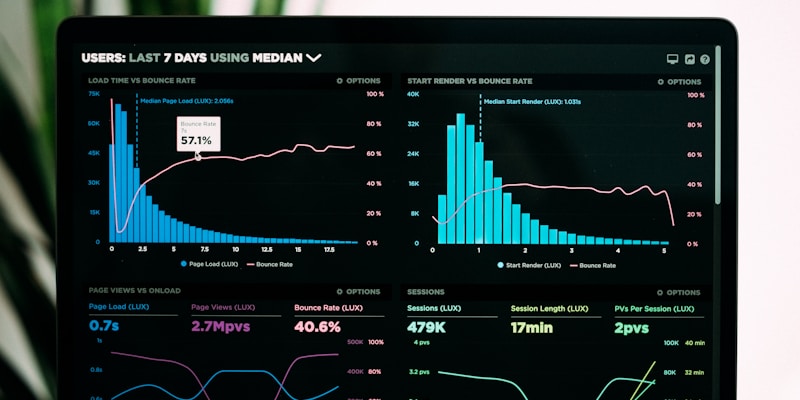
Nyura doesn't just manage tasks — it helps you understand your work patterns. The Productivity Dashboard shows: a bar chart of daily tasks created vs. completed, a pie chart breaking down tasks by project, a line chart showing completion trends over time, and a 7-day activity heatmap with intensity colors. The Task Activity Timeline shows a chronological log of every status change, edit, and completion across all your tasks. Completion streaks track consecutive days where you completed at least one task — building momentum. The Weekly Review dialog summarizes your week: how many tasks you completed, how many are overdue, and what to prioritize next. For deeper tracking, every task has time tracking — start a timer when you begin working, and Nyura logs the duration to your PM time entries. This data feeds into per-task and per-project time reports, helping you estimate future tasks more accurately.
Step 12: Works Offline, Syncs When You're Back
Lose your internet connection? Nyura keeps working. All task operations — create, edit, complete, delete — are saved locally to IndexedDB and synced when you're back online. A small sync indicator badge shows how many pending changes are queued. If a conflict happens (you edited a task offline while someone else edited it online), Nyura shows a conflict resolution dialog so you can choose which version to keep. The app is a full Progressive Web App (PWA) with service worker caching and background sync — it loads instantly even on flaky connections. On mobile (iOS and Android via Capacitor), the same offline engine works natively. Combined with 12+ import methods and 6 views, Nyura is designed so that no matter where you are, how you work, or what device you're on — your tasks are always accessible, always organized, and always under your control.